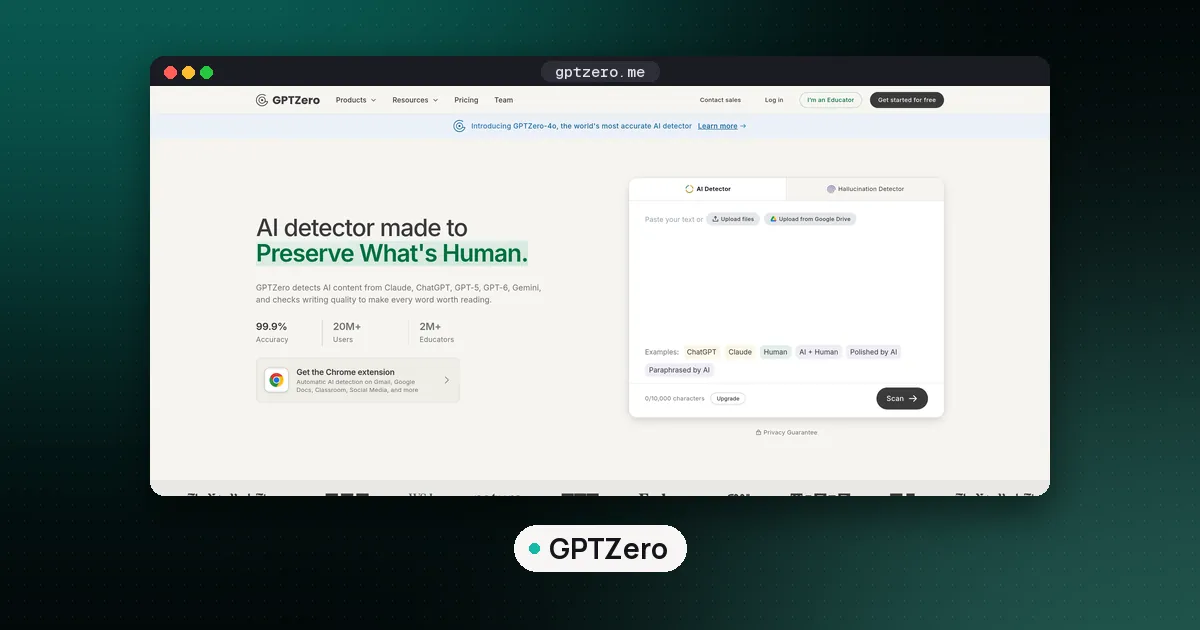
How to use GPTZero in Google Docs: install the free browser extension GPTZero: AI Detection & Writing Replay, log in to a GPTZero account, open the document, and use the GPTZero menu inside Docs to click Scan for AI (or Scan Selection for AI after highlighting a passage). For the writing history, choose Watch Writing Report from the same menu; that needs edit access to the file. Right clicking does nothing in Docs, because the extension turns its context menu off on docs.google.com (GPTZero support).
There is no separate Google Docs add on to install from the Docs menu. Everything runs through the extension, which works in Chrome, Edge and Firefox. This guide walks through setup, the scan, sentence highlighting, the Writing Report and how to share it, what the free plan allows, and the problems people hit most often. Every step and limit below was read on GPTZero's own help center, product pages and the Chrome Web Store listing on November 11, 2026. We did not run scans in a logged in account for this guide, so the menu labels are the ones GPTZero documents.
Before you start: what you need
| Need | Why it matters |
|---|---|
| Chrome, Edge or Firefox on a computer | The extension is the only way GPTZero appears inside Docs |
| A GPTZero account (free works) | The extension shows "Log in to start scanning" until you sign in |
| Edit access to the Google Doc | Required for the Writing Report; scanning text works without it |
| At least one edit in the document | A brand new, untouched file has no history to replay |
| Enough text | GPTZero's Classroom sidebar skips anything under 250 characters |
The extension listing on the Chrome Web Store showed version 2026.11.3, updated November 11, 2026, with about 500,000 users and a 4.6 rating from 752 reviews when we checked. GPTZero ships updates often, so a label may move slightly between versions.
How to use GPTZero in Google Docs, step by step
These steps follow GPTZero's extension setup article and its Google Docs help pages.
- Install the extension. Open the Chrome Web Store listing and click Add to Chrome. Edge and Firefox users install the same extension from their own stores.
- Pin it. Click the puzzle piece icon in the toolbar and pin GPTZero so the icon stays visible.
- Log in. Click the icon and sign in or create a free account. Until you do, the extension only says "Log in to start scanning."
- Open your Google Doc. Make sure the Docs header is expanded. If it is collapsed, the GPTZero menu will tell you to "Expand Google Docs top menu."
- Scan the document. Open the GPTZero menu in the Docs header and click Scan for AI. To check only part of the text, highlight it first and the option changes to Scan Selection for AI.
- Read the result in the side panel. GPTZero returns an overall judgment for the document and, on plans that include it, sentence level highlighting.
If you would rather not wait for a click, the GPTZero Chrome page describes an auto scan setting: with it on, GPTZero scans each Google Doc as you open it so the result is already in the side panel. You can turn it off and go back to manual scans at any time.
How to see which sentences GPTZero flags
Inside Docs, a Show AI sentences toggle paints each sentence by AI confidence directly on the page: green for text that reads as human, then yellow to orange as the AI confidence climbs. GPTZero says this is a visual layer only. Nothing is inserted into the document, and switching the toggle off returns the file exactly as it was, so it is safe to use on a student's or colleague's document.
Two cautions apply. First, highlighting counts against a separate allowance on the free plan (more on that below). Second, a colored sentence is a probability, not a finding. GPTZero's own FAQ says no AI detector is 100% accurate, that results "should not be used to punish or as the final verdict," and that accuracy is better on longer inputs and strongest on English prose. Read a single orange sentence in a long human draft with that in mind. For what independent studies have found about false positives, see our guide on whether AI detectors are accurate.
How to open the GPTZero Writing Report in Docs
The Writing Report is the part of GPTZero that makes the most sense in Google Docs, because Docs already keeps a revision history. According to GPTZero's Writing Report guide, the extension rebuilds a replay from that history rather than recording keystrokes itself.
To open it:
- Open a Google Doc you can edit.
- In the GPTZero menu, click Watch Writing Report (some screens label it Play Writing Report).
- Use the playback to step through edits, or the 60 second overview to compress a long session into one minute.
What the report shows:
- Playback and timeline. Editing sessions laid out over time, with controls to move through each change.
- Paste events. Large pastes spike on the timeline and get their own card showing who pasted, how much, and what came in (GPTZero Authorship page).
- Typing analysis. A score for how natural the typing looks, based on pace, pauses and corrections, plus a check for autotyper software that fakes typing.
- Multiple editors. You can switch between writers in a shared file to see each person's contribution.
- Investigate chat. An AI chat that answers questions from the edit history, such as what changed at the last minute.
The menu tells you when something blocks the report. "Request edit access" means you only have view rights. "Please make an edit to view writing report" means nobody has edited the file yet.
How to share a Writing Report
A student who wants to show their process, or a teacher who wants a colleague to see the same evidence, can share the report as a link. The GPTZero sharing article gives these steps:
- In the Doc, open the GPTZero panel and click Play Writing Report.
- Click Share at the top of the report.
- Turn on Allow anyone with the link to view.
- Click Copy Link, or Open Link to check what the viewer will see.
To stop sharing, open Share again and turn the setting off. The report goes back to private. This is the easiest fix when a teacher has only view access to a student's file: the student opens the report on their side and sends the link.
Using GPTZero in Google Classroom
Teachers who grade in Google Classroom get a GPTZero sidebar on the right of the grading view, and the same sidebar appears in Google Assignments (GPTZero Classroom article). Open a submission that is a Google Doc, click Get Started the first time, and log in. If the sidebar is missing, open the extension while the Classroom tab is active, turn on Enable GPTZero, and in the Google Classroom Grading section turn on Show in Classroom sidebar.
The sidebar score is how likely the whole submission was written by AI. View full analysis opens the scan in GPTZero. Under the same Grading settings you can turn on Auto scan on launch to scan each submission as it opens, and Writing replay video to get a Play writing video button. Slides and spreadsheets are not scanned, and submissions under 250 characters are skipped.
Separately, GPTZero lists an app called GPTZero for Education on the Google Workspace Marketplace. That one connects Google Classroom to GPTZero's own writing editor, GPTZero Docs, where students write inside GPTZero. It is not a Google Docs add on, and you do not need it to scan a normal Google Doc.
Is GPTZero free to use in Google Docs?
Yes, within limits. GPTZero's Chrome page says the extension is free to install and use with a GPTZero account and includes a monthly allowance of scans, highlighting sessions and chat messages. Its help center adds the numbers we could confirm:
- Extension scans: up to 25 AI scans per month on the free plan (setup article).
- Other extension features: AI scans, AI highlighting, AI Vision and Writing Reports each have their own usage limit on the free plan, and Premium removes those limits (extension features).
- Account allowance: the free plan includes 10,000 words a month, up to 10,000 characters per scan, the Basic AI Scan with an overall score, and one free Advanced Scan to try sentence highlighting (plan comparison).
One inconsistency is worth knowing about. The same plan comparison article says the paid Essential tier "adds" the browser extension, while the Chrome page and setup article describe free extension use with limits. In practice that reads as a free allowance with fuller extension features on paid plans, but check the plan screen in your own account before you count on a feature. The pricing page renders prices in the browser, so we have not repeated dollar figures here. For a side by side of free detector options, see the best free AI detector guide.
The download and upload route
If you cannot install extensions (a locked school laptop, for example), you can still scan a Doc's text. In Google Docs, click File, then Download, and pick Microsoft Word or PDF (Google Docs Help). Then upload that file in the GPTZero dashboard, which accepts pasted text and uploaded files (GPTZero support).
You lose the Writing Report this way, because a downloaded file carries no revision history. For that, Google's own tools still help. Anyone with edit permission can click Last edit at the top right to open version history; viewers cannot see it (Google Docs Help). Google also notes that revisions are sometimes merged, and that the owner of a file on a personal Google account can permanently delete its version history. A thin history is therefore not proof of anything on its own.
Common problems and fixes
- Right click does nothing. Expected. Use the GPTZero menu in the Docs header.
- No GPTZero menu. Check that you are logged in to the extension and that the Docs header is expanded.
- "Request edit access." You are a viewer. Ask the owner for edit rights or a shared Writing Report link.
- The report looks empty. The file may have been pasted in whole from somewhere else, or the history was merged or deleted. Talk to the writer before drawing a conclusion. A person who drafts in another app and pastes the final text produces one big paste even when the work is honest.
- The free scans ran out. The allowance is monthly. Wait for it to reset, use the download route for one off checks, or upgrade.
How GPTZero in Docs compares with other options
GPTZero is the deepest Docs integration among the self serve detectors we cover: in document scanning, painted sentences and a replay built from revision history. Turnitin works through school licenses and LMS assignments rather than a personal Docs extension; our GPTZero vs Turnitin comparison covers that split. Pangram and Originality.ai also offer Chrome and Google Docs hooks. If you are weighing evidence beyond a score, our checklist on how to detect AI writing explains how to combine detector results, drafts and conversation.
FAQ
Is there a GPTZero add on for Google Docs?
Not in the Docs Extensions menu. GPTZero works in Google Docs through its browser extension, GPTZero: AI Detection & Writing Replay, for Chrome, Edge and Firefox. The GPTZero for Education app on the Workspace Marketplace is for Google Classroom and GPTZero's own editor.
How do I use GPTZero on Docs without right clicking?
Open the GPTZero menu in the Docs header and choose Scan for AI, or highlight text first and choose Scan Selection for AI. GPTZero turns the right click menu off on docs.google.com on purpose.
Is GPTZero free in Google Docs?
The extension is free with a GPTZero account. GPTZero's help center lists up to 25 AI scans per month on the free plan, separate limits for highlighting and Writing Reports, and a 10,000 word monthly account allowance. Premium removes the extension limits.
Why does GPTZero say "Request edit access"?
The Writing Report is built from the document's revision history, and Google only shows version history to people who can edit the file. Ask for edit access, or ask the writer to share their report link with you.
How does GPTZero work in Google Docs?
The scan reads the text and predicts whether it looks human, AI or mixed, sentence by sentence. The Writing Report rebuilds how the file was written from Google's revision history and scores the typing pattern. GPTZero calls the report evidence of process, not a verdict.
Can a student use GPTZero to prove they wrote something?
A student can open the Writing Report on their own Doc and share the link with a teacher, which shows drafting, edits and pastes over time. It is strong supporting evidence when the history is complete, but it cannot show work done outside the document.